Create, View, edit and set your database tables.
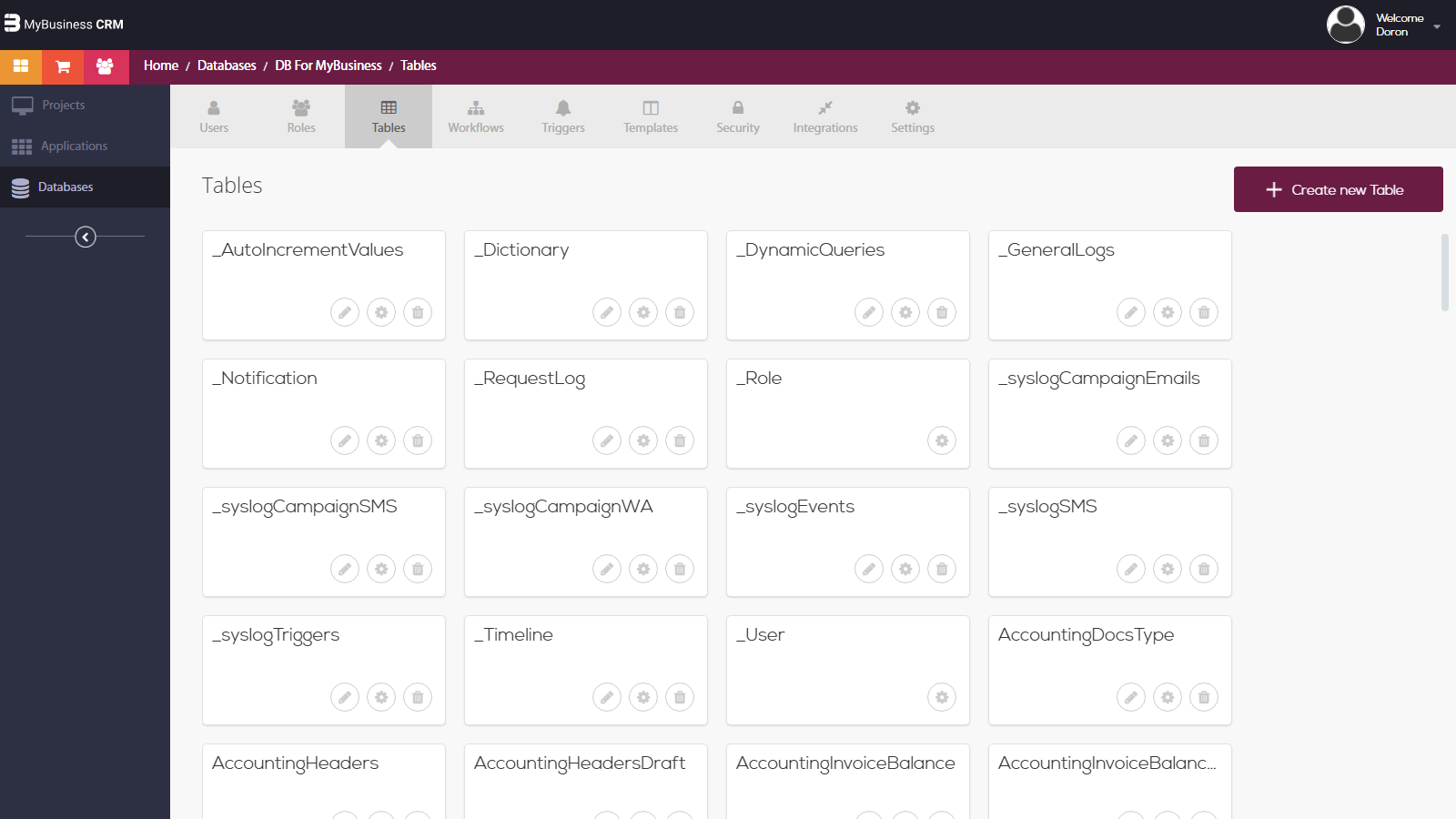
Each table has three options(settings,edit,delete):
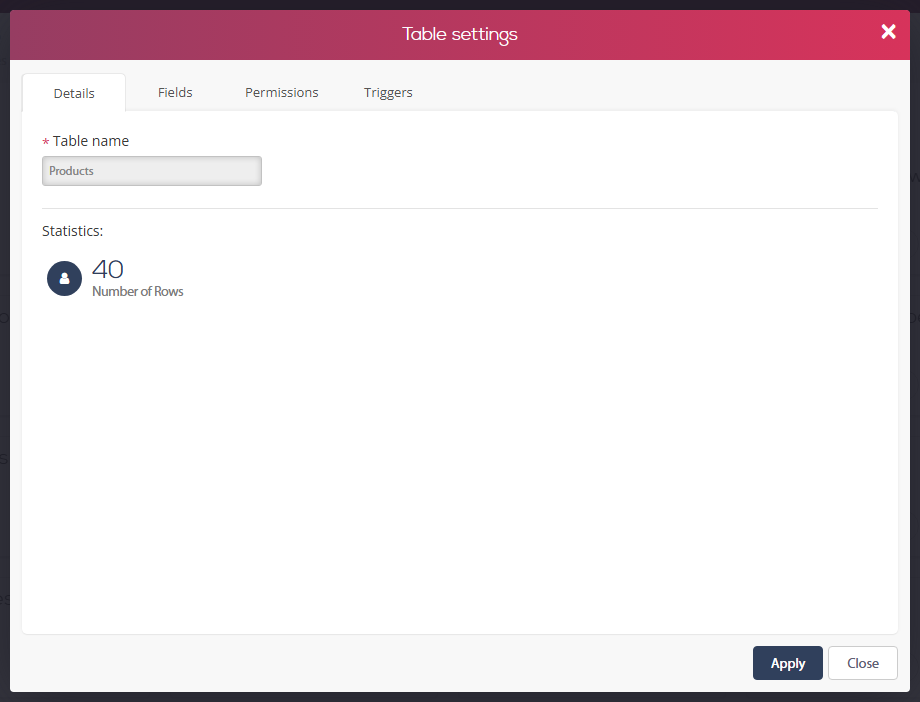
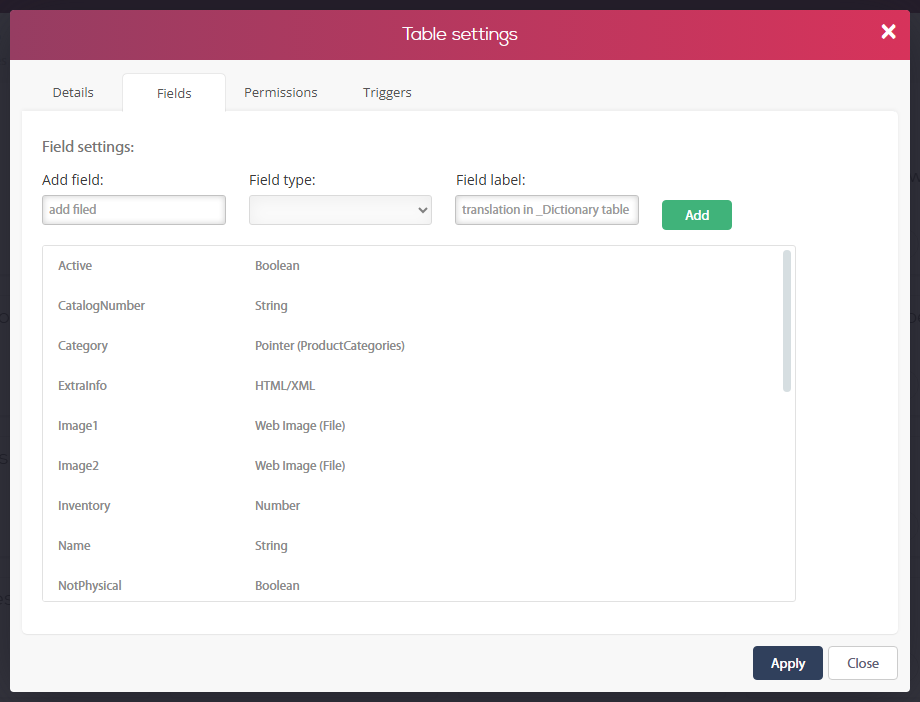
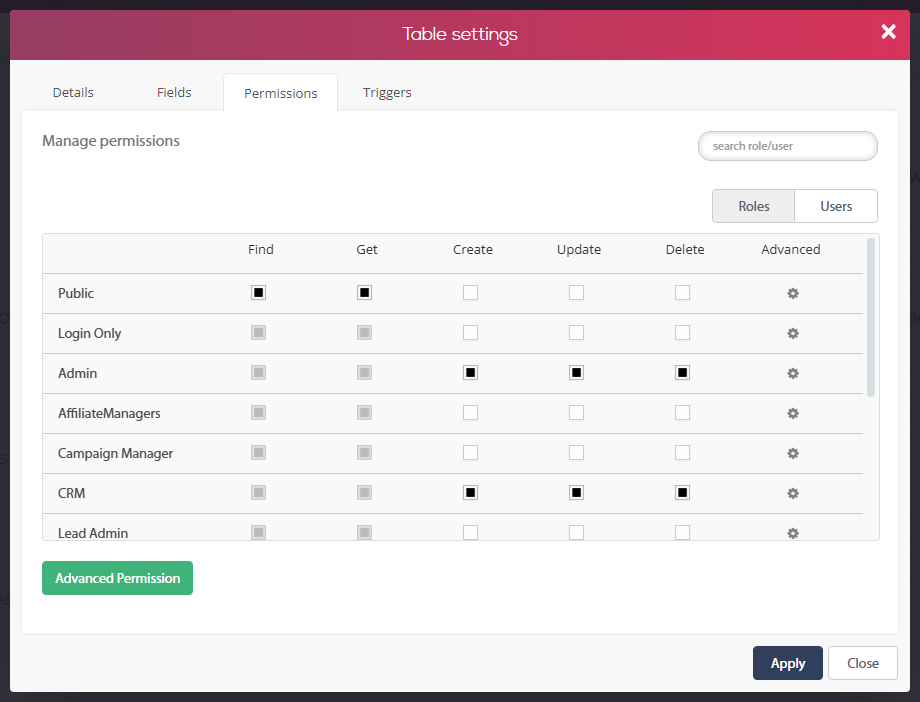
1. Settings – clicking the settings icon will open window with three tabs:
A. Table details – name and stats.
B. Fields – define your table columns.
C. Permissions – set the permissions of the table by your different roles and users.
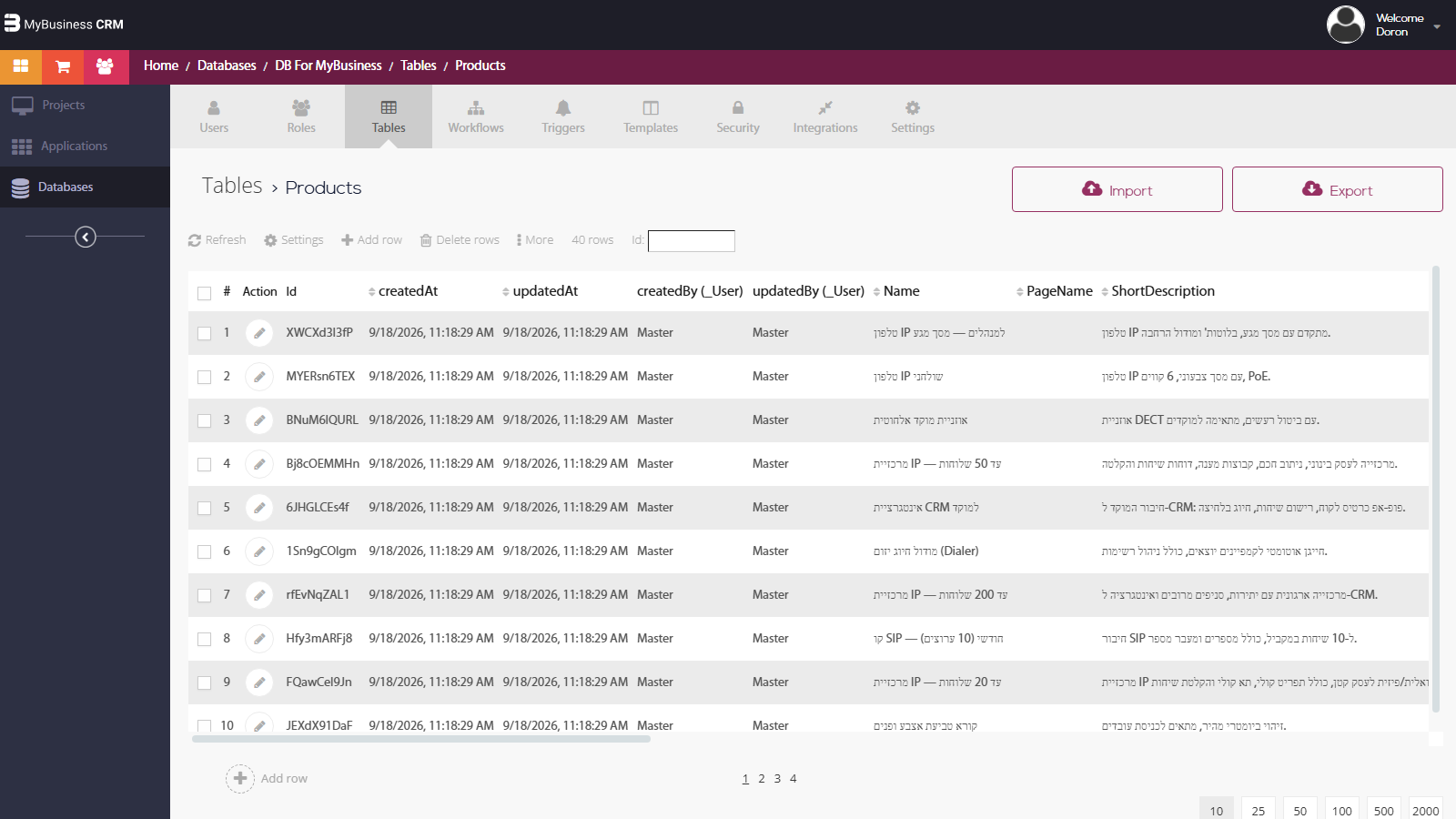
2. Edit – Edit will send you to your table where you will be able to manually add, edit or delete rows of data. Here you will also be able to export your table.
3. Delete – will delete the whole table and permissions, so always keep a backup by exporting your table before making any changes!